Instagram Unfollower Tracker Guide
Easily and safely find who unfollowed you. Step-by-step instructions from downloading Instagram data to analysis.
Important Notes
- <span class="highlight">Select "All Time"</span> - You must set the date range to "All Time" for accurate results.
- <span class="highlight">JSON format required</span> - HTML format cannot be analyzed.
- Processing time - More followers may take longer to prepare data (up to several hours).
- Upload ZIP as-is - Do not extract the ZIP file, upload it directly.
Access Profile and Settings Menu
Go to your profile on the Instagram app or website, then tap the '≡' menu in the top right.
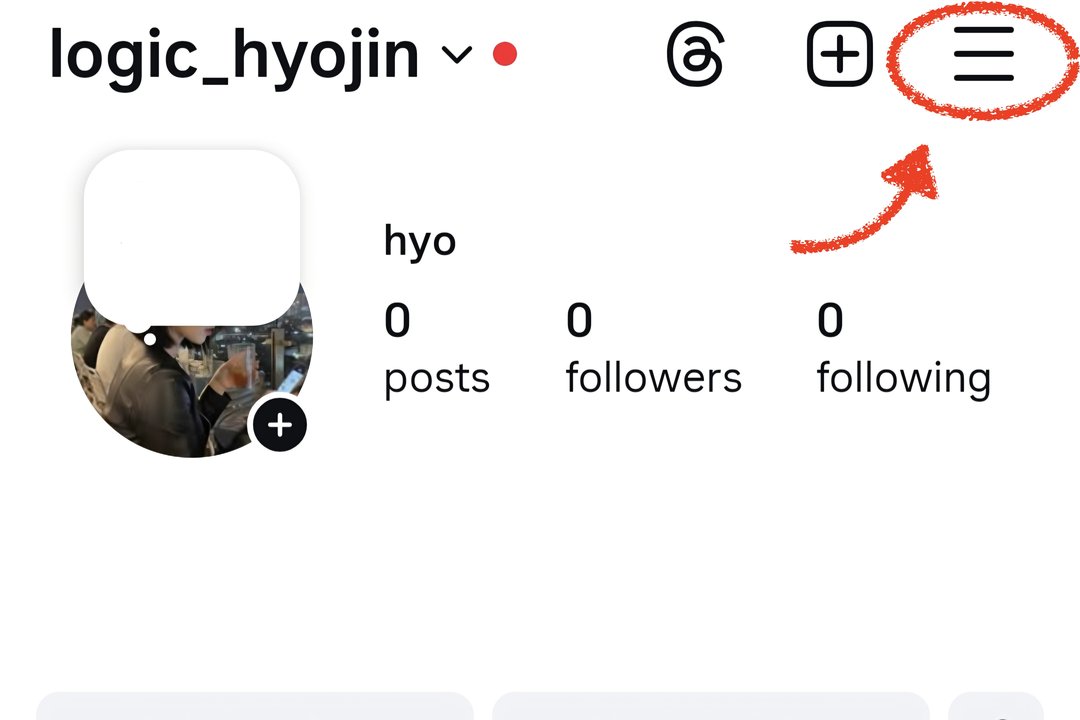
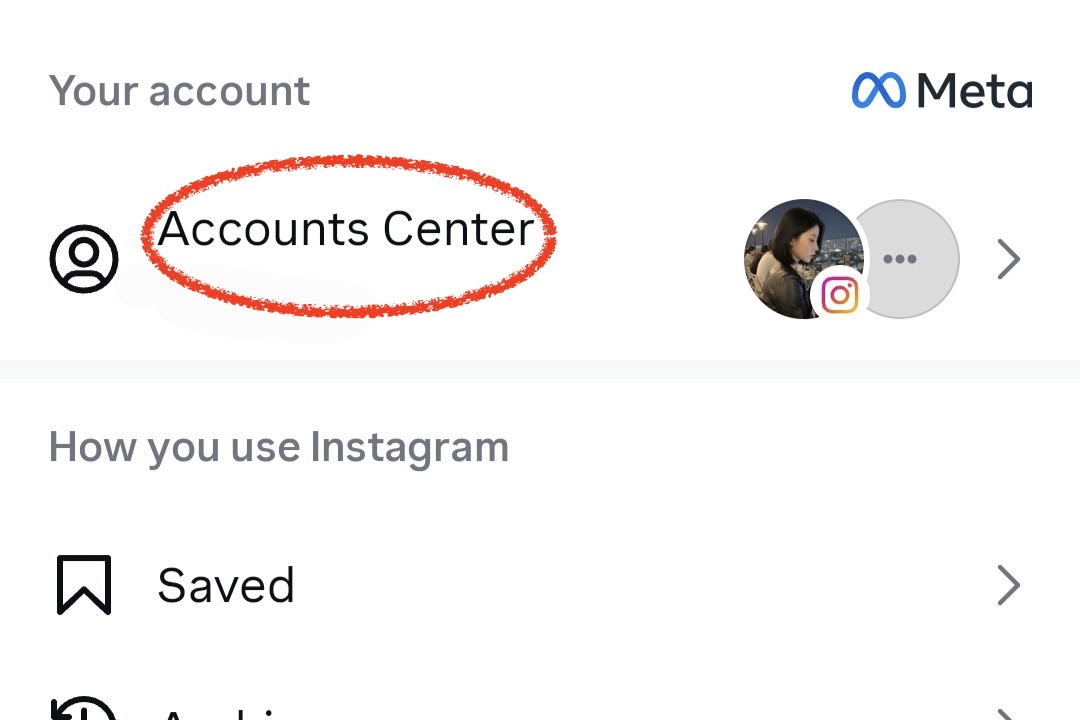
Select "Accounts Center"
Find and select "Accounts Center" from the settings menu.
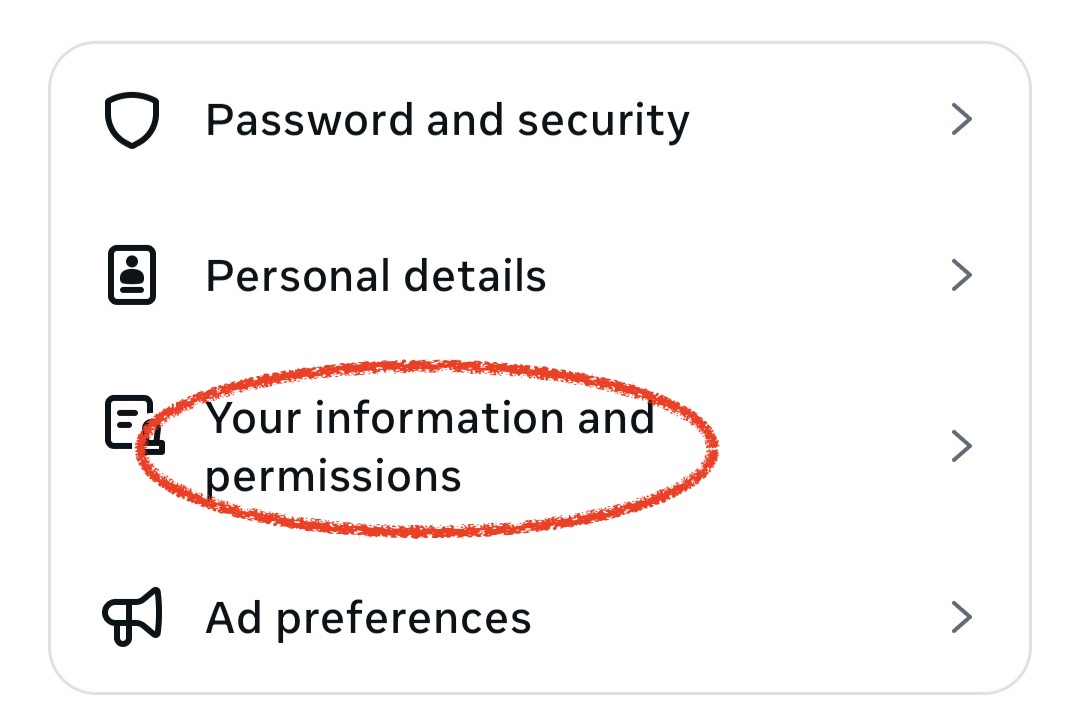
Select "Your Information and Permissions"
Select "Your Information and Permissions" from Accounts Center.
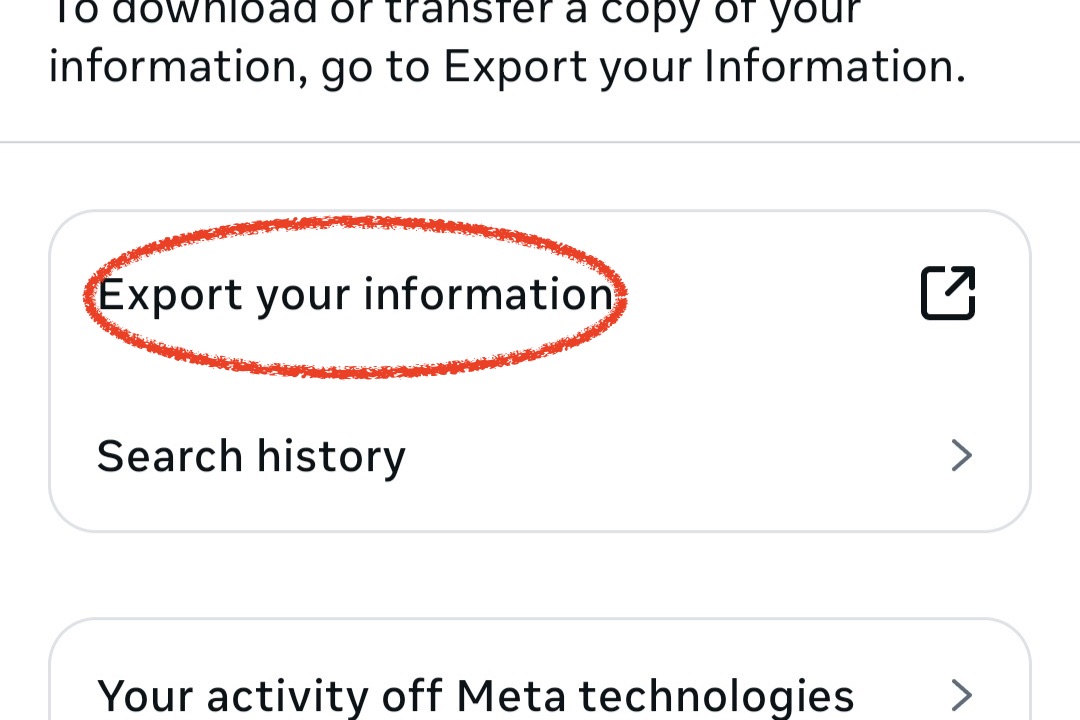
Select "Download Your Information"
Select "Download Your Information" from the Your Information and Permissions menu.
Select "Create New Export"
Tap the "Create New Export" button in the bottom menu that appears.
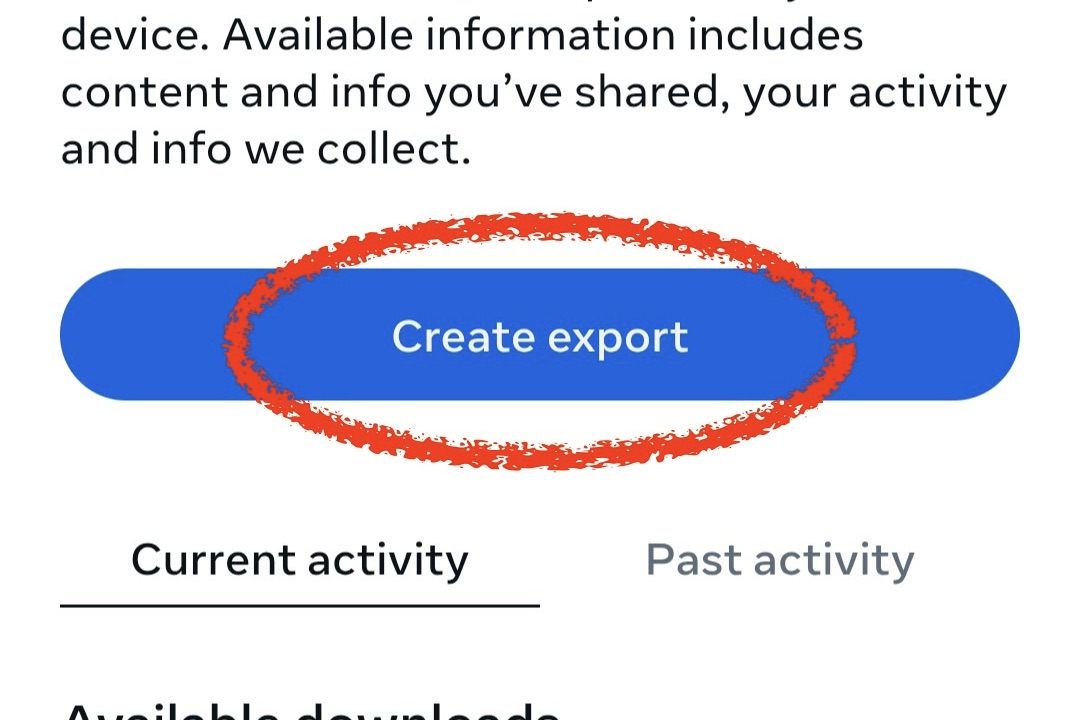
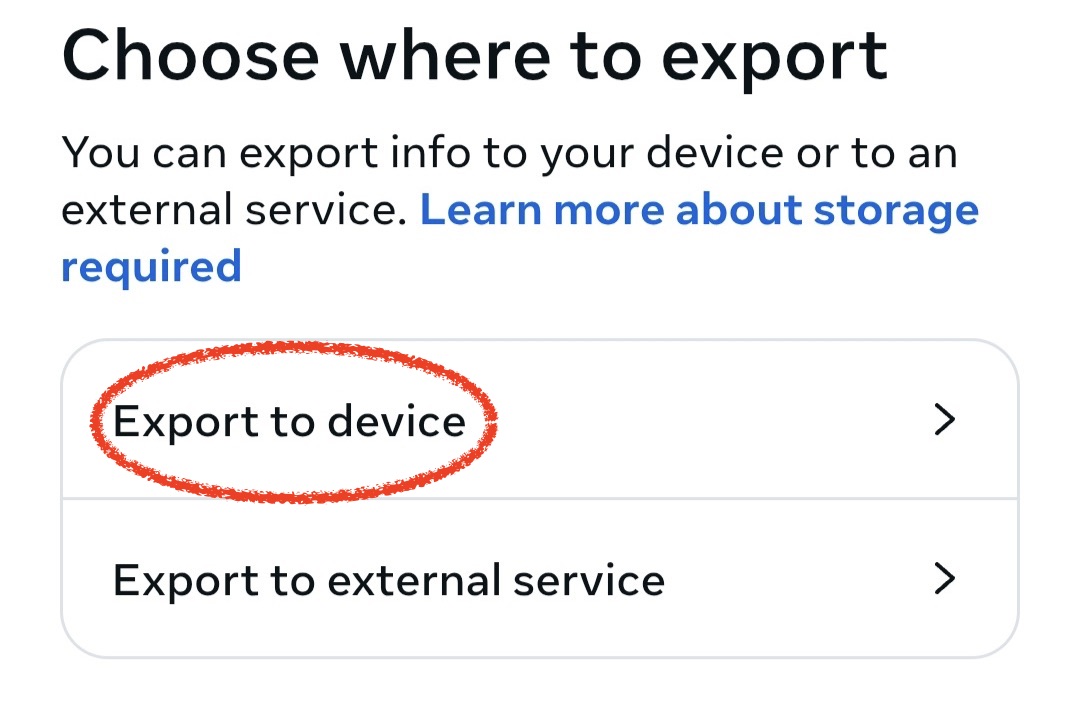
Select Export Location
Select the "Download to device" button.
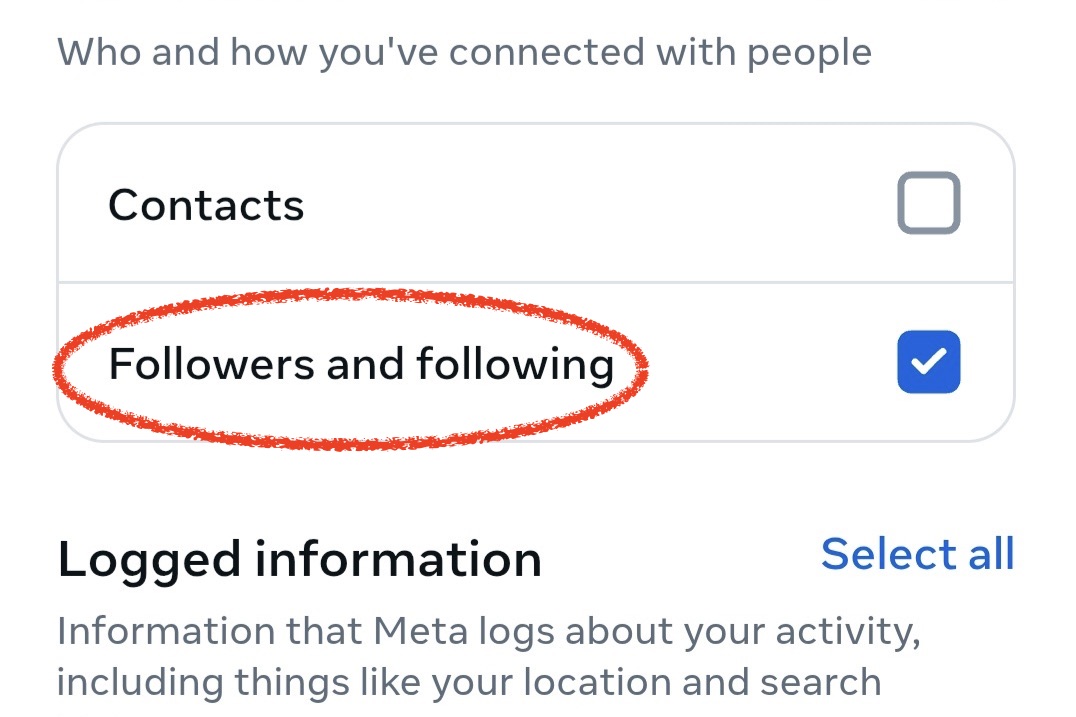
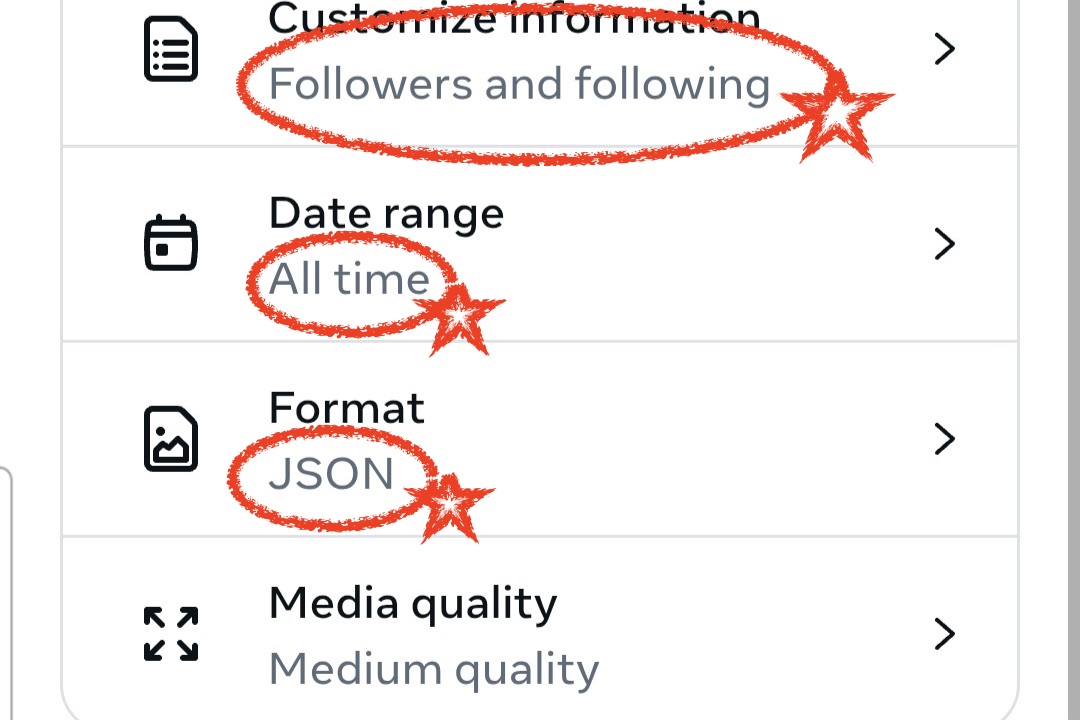
Customize Information Settings
On the information customization screen, select <span class="highlight">"Followers and following"</span>, set the date range to <span class="highlight">"All time"</span>, and format to <span class="highlight">"JSON"</span>.
⚠️ Very Important:
- • Only the combination of All time + JSON format ensures accurate analysis
- • HTML format cannot be analyzed
Start Export
Click the "Start Export" button. Data preparation will begin.
Download Data
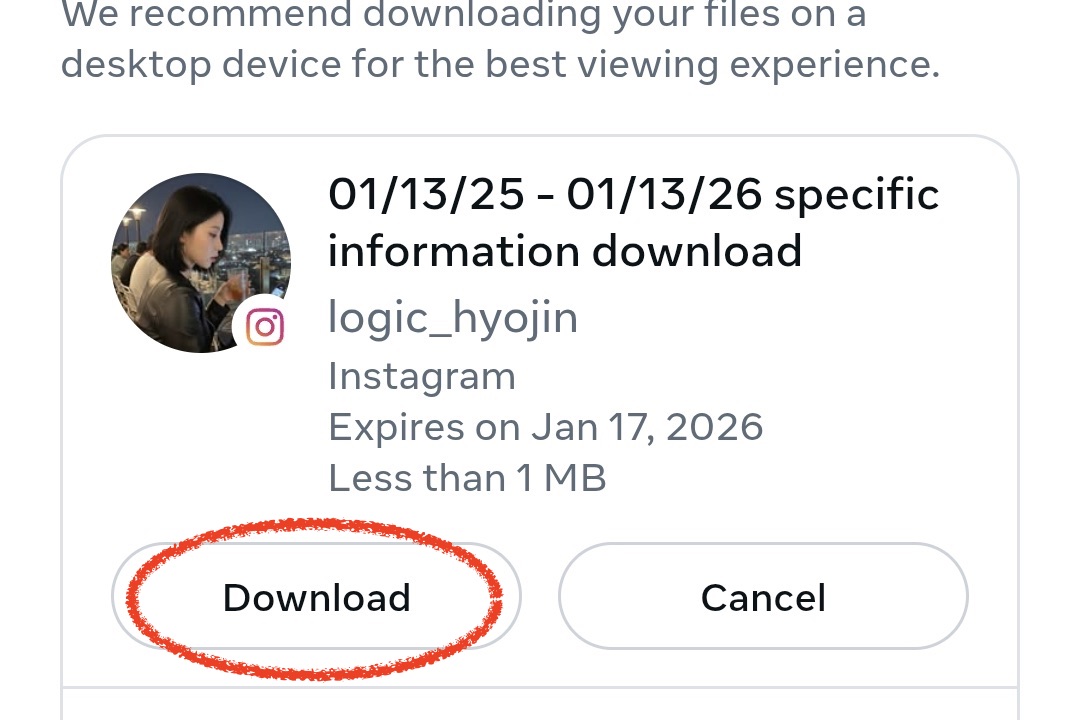
Once you receive the email notification, return to Instagram and download the prepared file.
Upload to Feedbuddi
Upload the downloaded ZIP file as-is to the Feedbuddi website and unfollower analysis will start automatically.
Analyze Instagram Unfollowers
Upload your Instagram ZIP file and start analyzing right away
Start Analysis Now →